🏛️ Parlova
Teacher guide

Getting started with Parlova

From signing up to the first mission played by your students — the 6 steps, in pictures. Allow about 10 minutes to get set up, not counting play time.

The in-game screenshots (step 6) show the French interface — with English as the mission language, students play entirely in English.

Why teachers adopt it

🔁
Reuse what exists
Before generating anything, browse the bank of existing missions — official ones or ones shared by other teachers — and duplicate one in a click.
📎
Your own materials
Upload a PDF or a lesson text: the AI turns it straight into a teaching brief, even outside the official curriculum.
📚
Cited sources, adjustable reliability
Add your documents to a mission: the character relies on them and the student sees the exact passage quoted. Three levels — Open, Semi-restricted, Restricted — decide whether the AI keeps its general knowledge.
🗺️
Complete sequences
Beyond a single mission, generate a learning path of several linked episodes (same characters, one storyline).
🎒
Zero friction for students
No account to create: link + password, and the student is in the mission in under 30 seconds.
📝
A memo at the end
Every mission ends with a printable memo, for revision after the lesson.
🖨️
A student worksheet to fill in
Separate from the memo: a blank sheet to print before the lesson, with questions to answer — never the answers. The full answer key stays in your own PDF.
🇪🇺
GDPR-compliant, data in the EU
Website hosted in Paris, database in Ireland. Student conversations are never used to train an AI model. Data can be deleted on request.
1

👩‍🏫 Sign up

On parlova.org, click “Create an account” and choose the “👩‍🏫 Teacher” profile. Enter your name and, if you like, the levels you teach — it sharpens the curriculum suggestions in the next step.
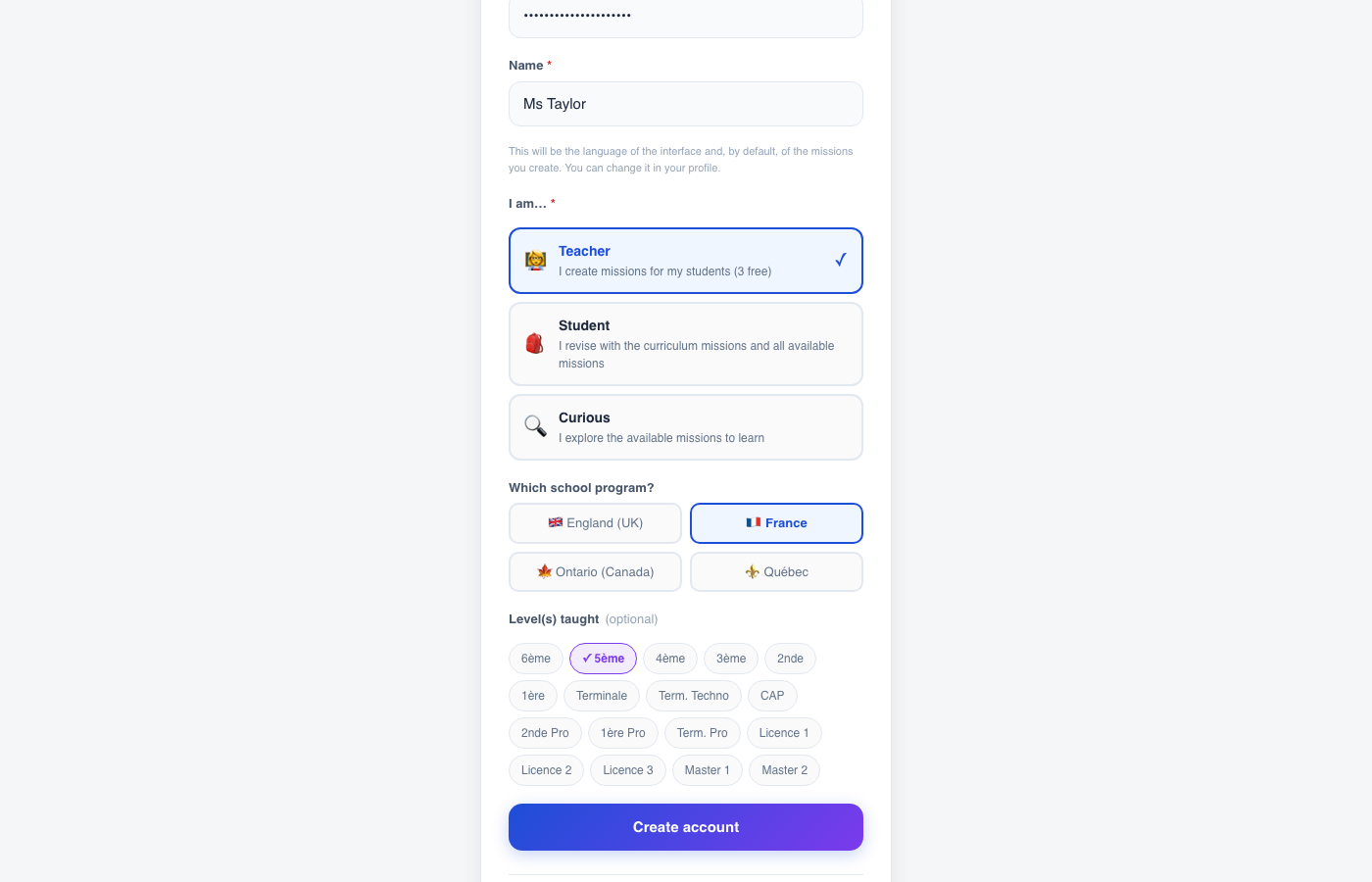
Parlova sign-up form with the Teacher profile selected
The sign-up screen — profile and levels taught.

A confirmation email is sent: click the link it contains to activate your account, then log in.
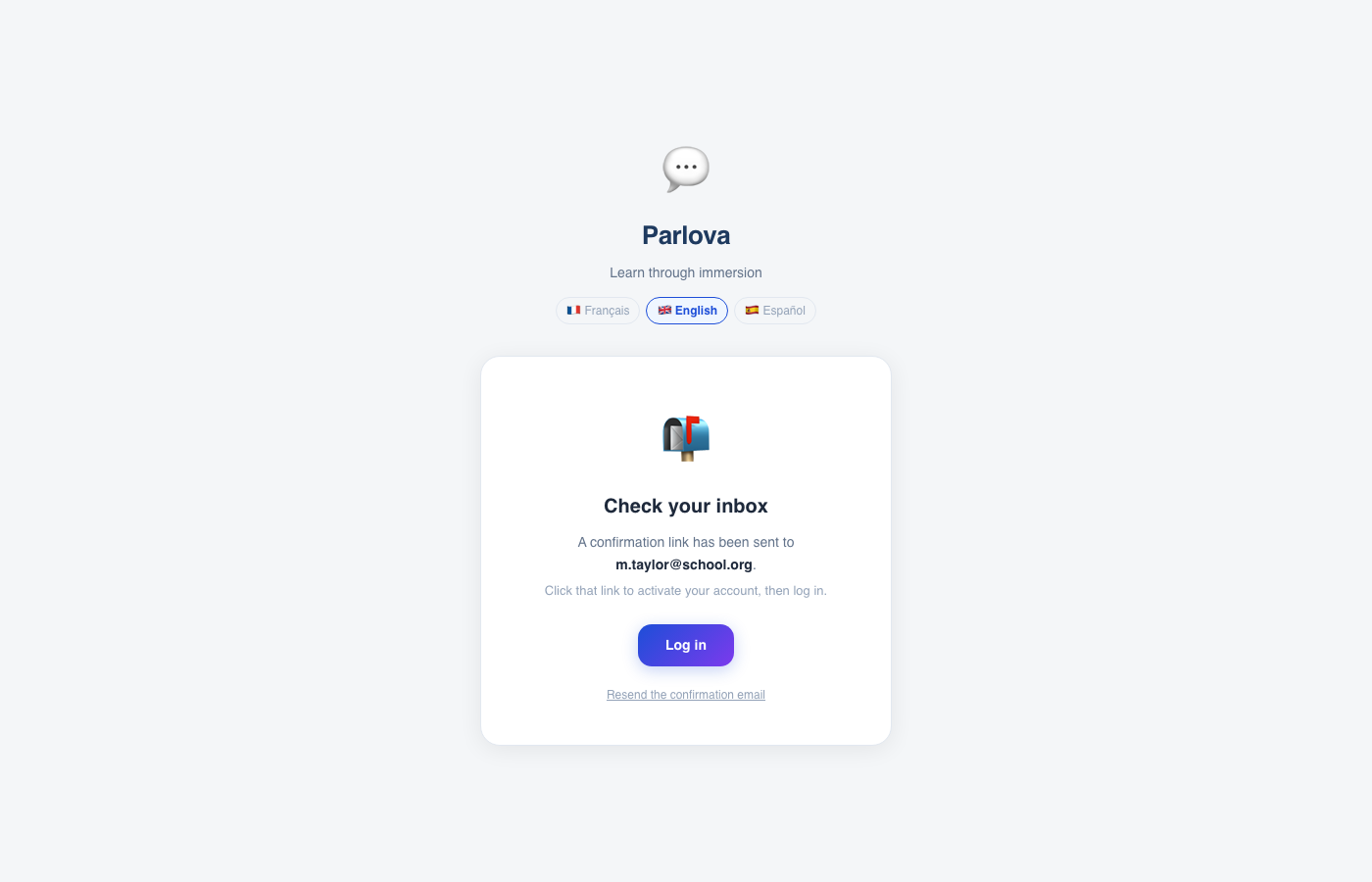
“Check your inbox” screen after signing up
Only once, when the account is created.
💡
Once logged in, you land on your dashboard — the name of the teacher area (“← Dashboard” in the menu), at the address /admin. A number of free missions is included when you create your account (shown in the app).
2

✨ Create a mission from your curriculum

From the dashboard, “✨ Create” → “From my curriculum”. Choose the domain — History/Geography, Mythology, Psychology, Philosophy or Investigation.
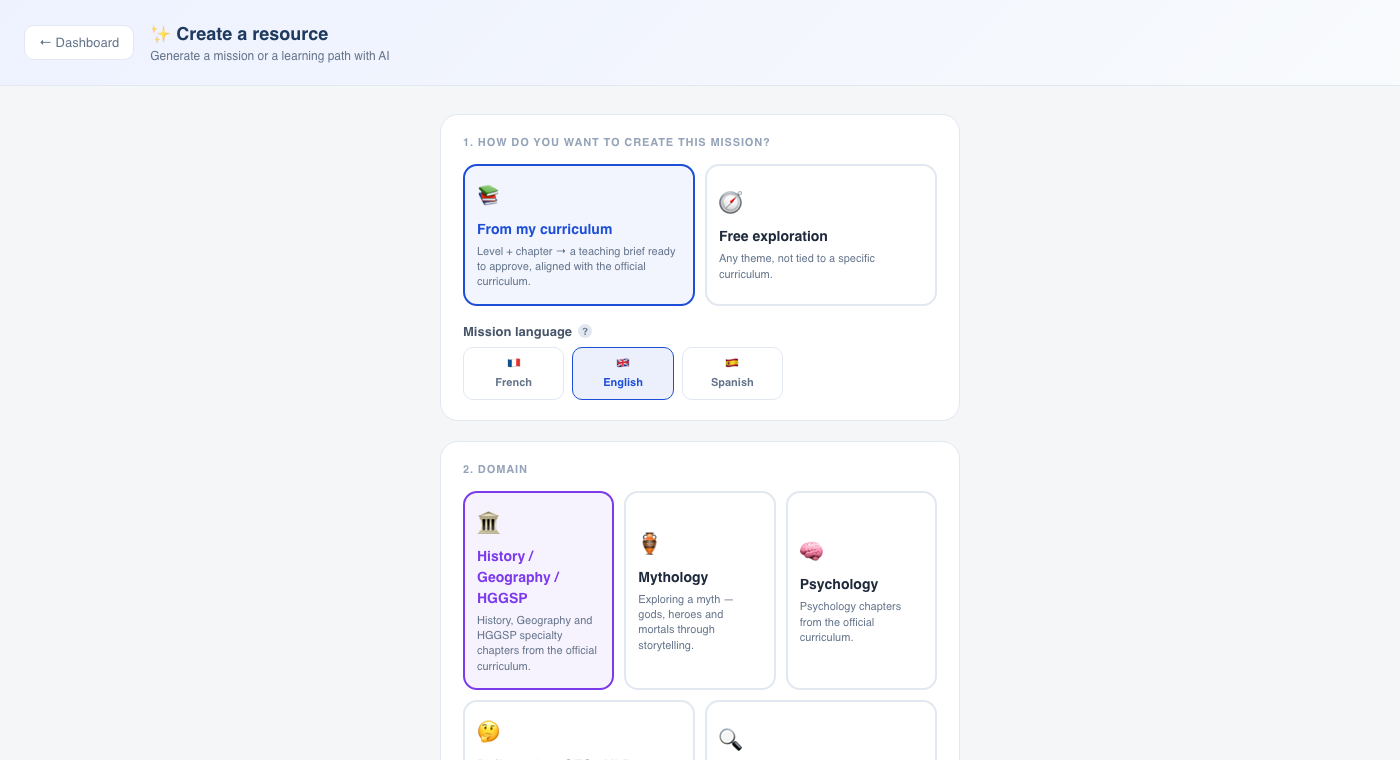
Choosing the creation mode and the domain (History/Geography, Mythology, Psychology, Philosophy, Investigation)

Then choose your school system and level, and click a chapter of the official curriculum directly.
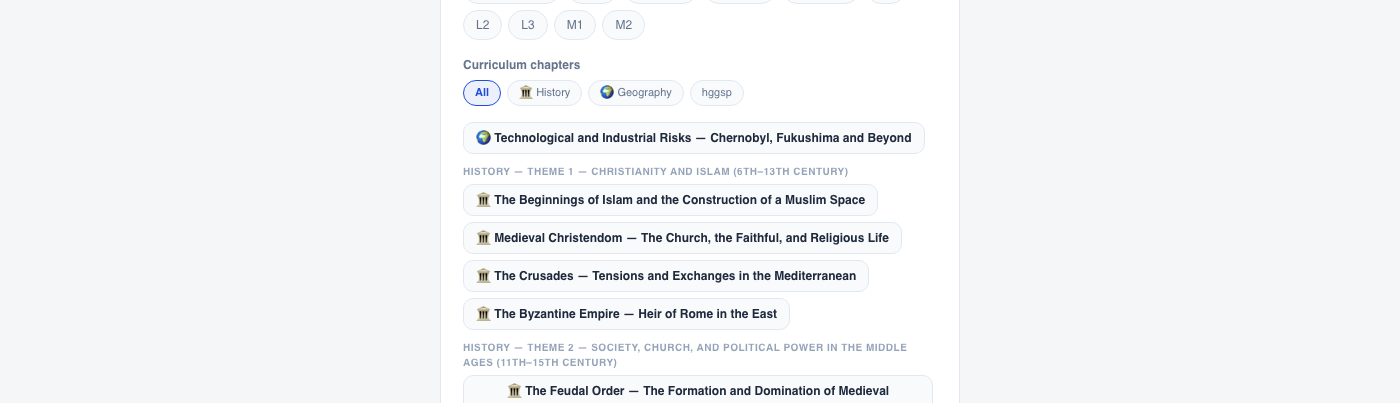
List of official curriculum chapters, filterable by subject

A complete teaching brief is generated automatically from the official curriculum: key question, concepts to use, dates and landmarks, skills practised, suggested characters, final question. Everything can be edited before you validate.
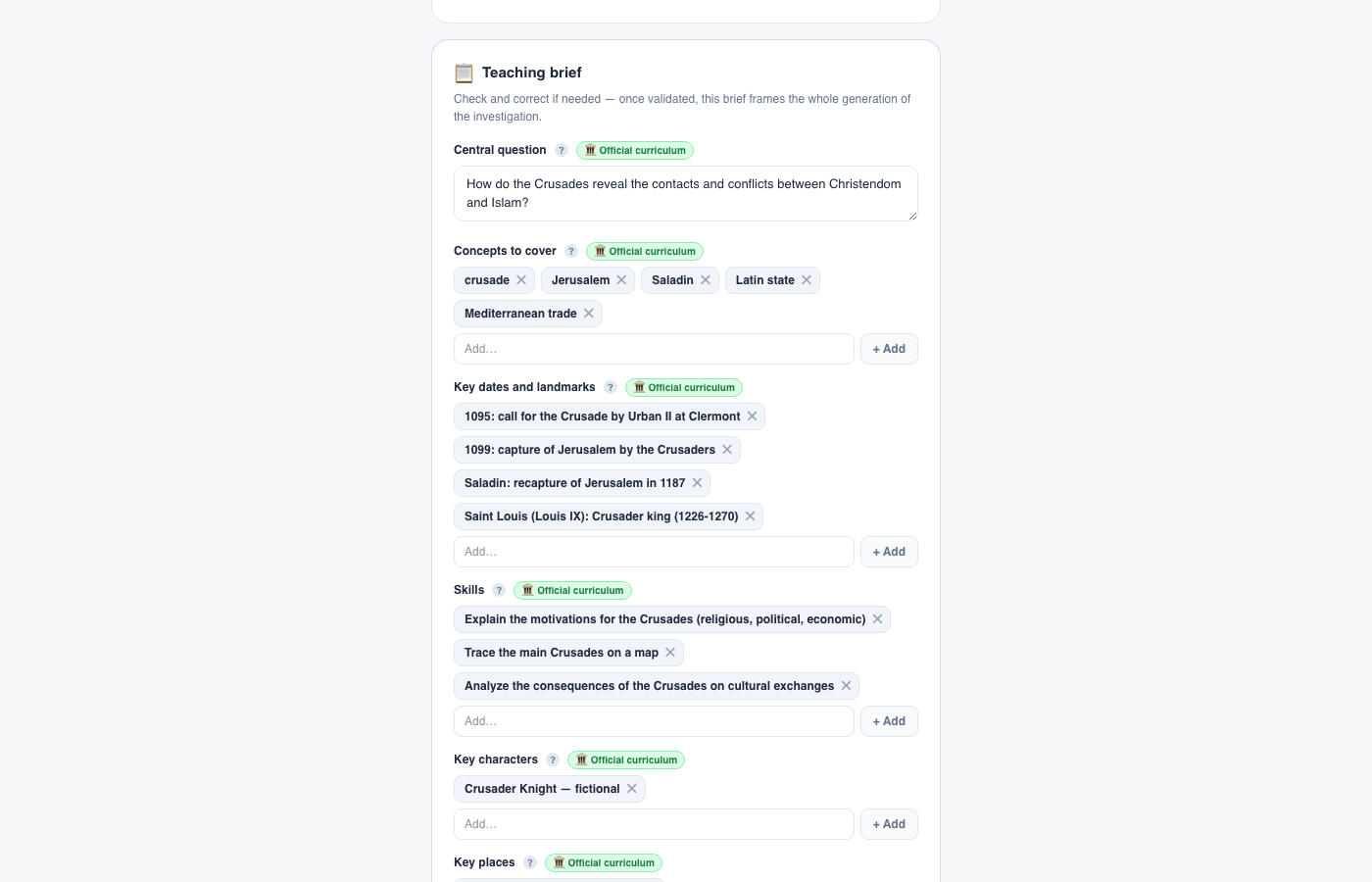
Teaching brief generated from the official chapter, with the Validate and launch button
A real example: the “Crusades” chapter (French curriculum, age 12–13) — the start of the brief pre-filled from the curriculum. The form continues below — next screenshot.

Further down the same form, two settings complete the brief: the key places on the 2D map, and the source corpus — your own sources, which the characters can rely on when they answer.
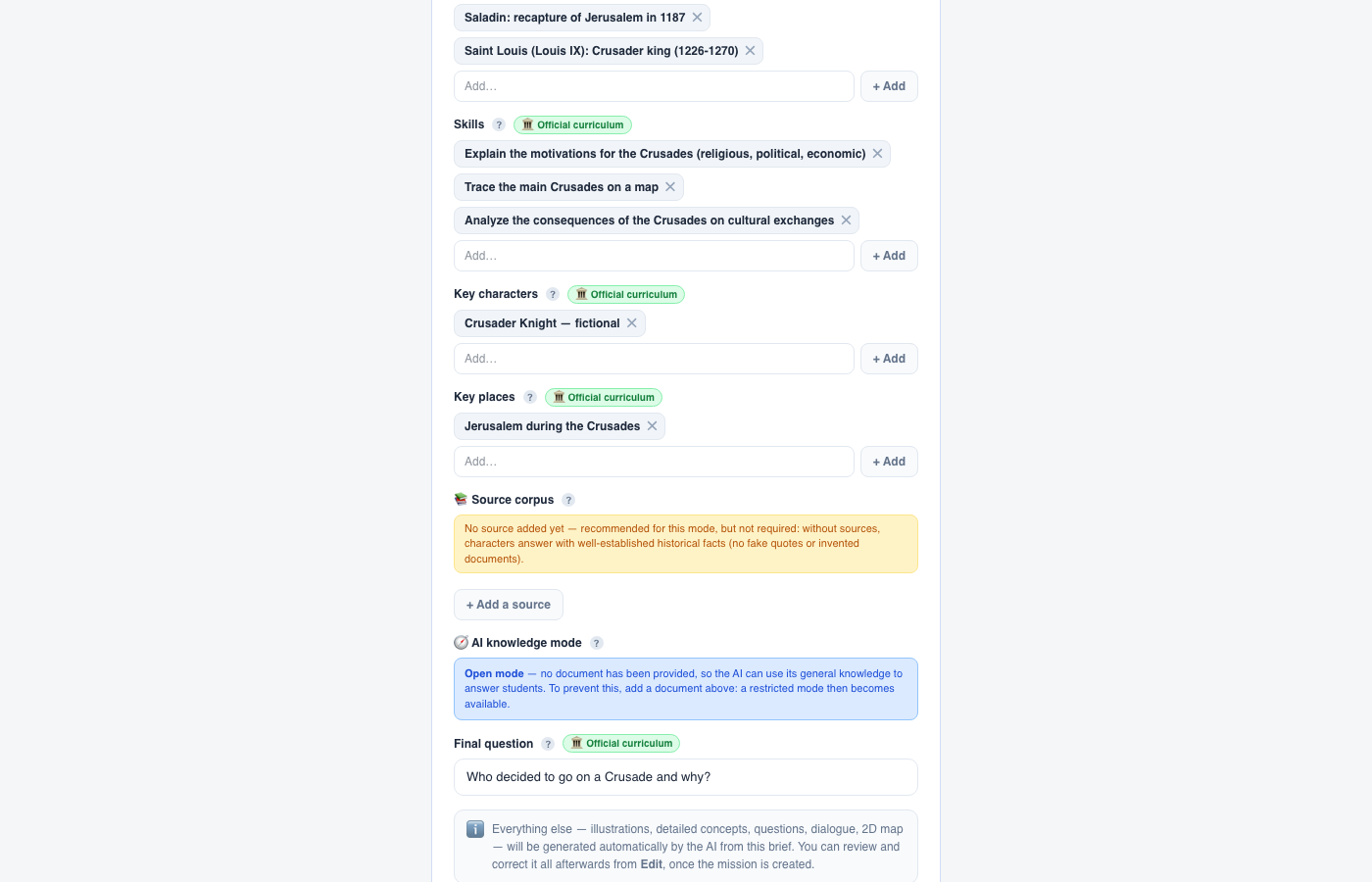
Key places and Source corpus sections of the brief, with the AI knowledge mode
Same brief, further down: key places, source corpus (“+ Add a source” button) and the AI knowledge mode — still empty here, before a source is added.

Click “+ Add a source”: a title is enough; the text (pasted, or imported as PDF/Word/ODT) is optional but lets the characters rely on a precise fact. As soon as the first source is added, the mode selector appears with its 3 levels.
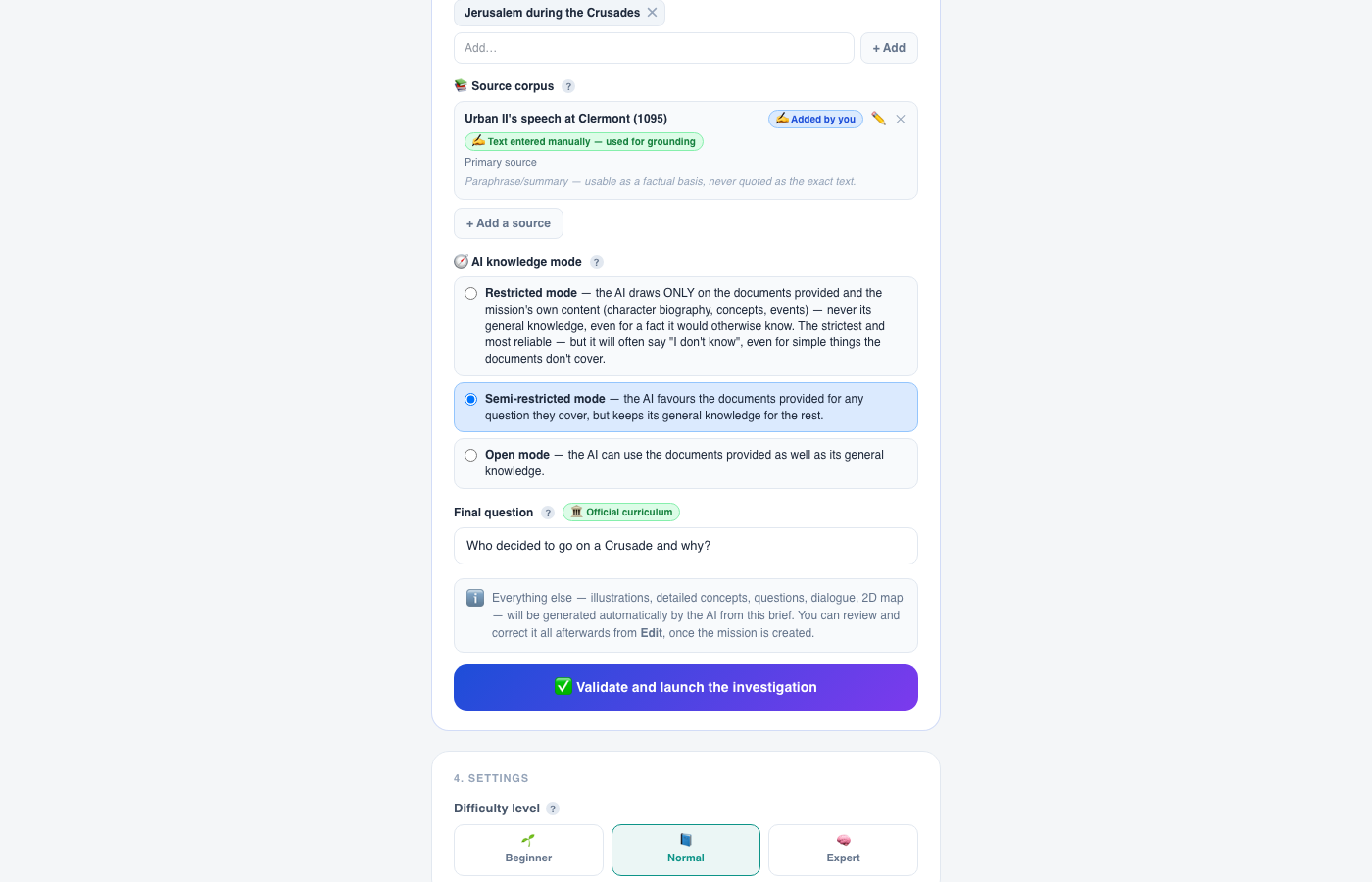
A source added to the source corpus, with the 3 levels of the AI knowledge mode (Restricted, Semi-restricted, Open)
One source added (“Urban II's speech at Clermont”) — the mode then switches automatically to Semi-restricted, which you can change at any time by clicking Restricted or Open.
💡
Generation usually takes a few minutes (longer the very first time a visual theme is used, while the illustrations are created). You can close the page: generation continues on the server.
🧭
You can also start from an entirely open topic (“Free exploration”) or upload your own lesson material so the AI extracts a brief from it.
🗺️
The “Key places” field: list the places your chapter can't do without; the AI puts them on the explorable 2D map as they are and builds the rest of the world around them.
📚
The “Source corpus” section: the character relies on your sources to answer, and the student sees the exact passage quoted. Three reliability levels — Restricted (the AI only draws on your documents), Semi-restricted (documents first, supplemented by general knowledge if needed) or Open (documents and general knowledge). Until a source is added, the mode stays “Open”.
🖨️
Once the mission is created, two printable sheets are available from “📚 My missions”: “📄 PDF” (summary and full answer key, for you) and “📝 Student sheet” (a blank sheet to hand out before the lesson, without the answers).
3

🏫 Create a class

“🏫 Classes” tab → name your class (e.g. “Year 9B”). This is the group that will automatically receive your students in the next step — it doesn't matter whether you create the mission or the class first, the two come together when you share.
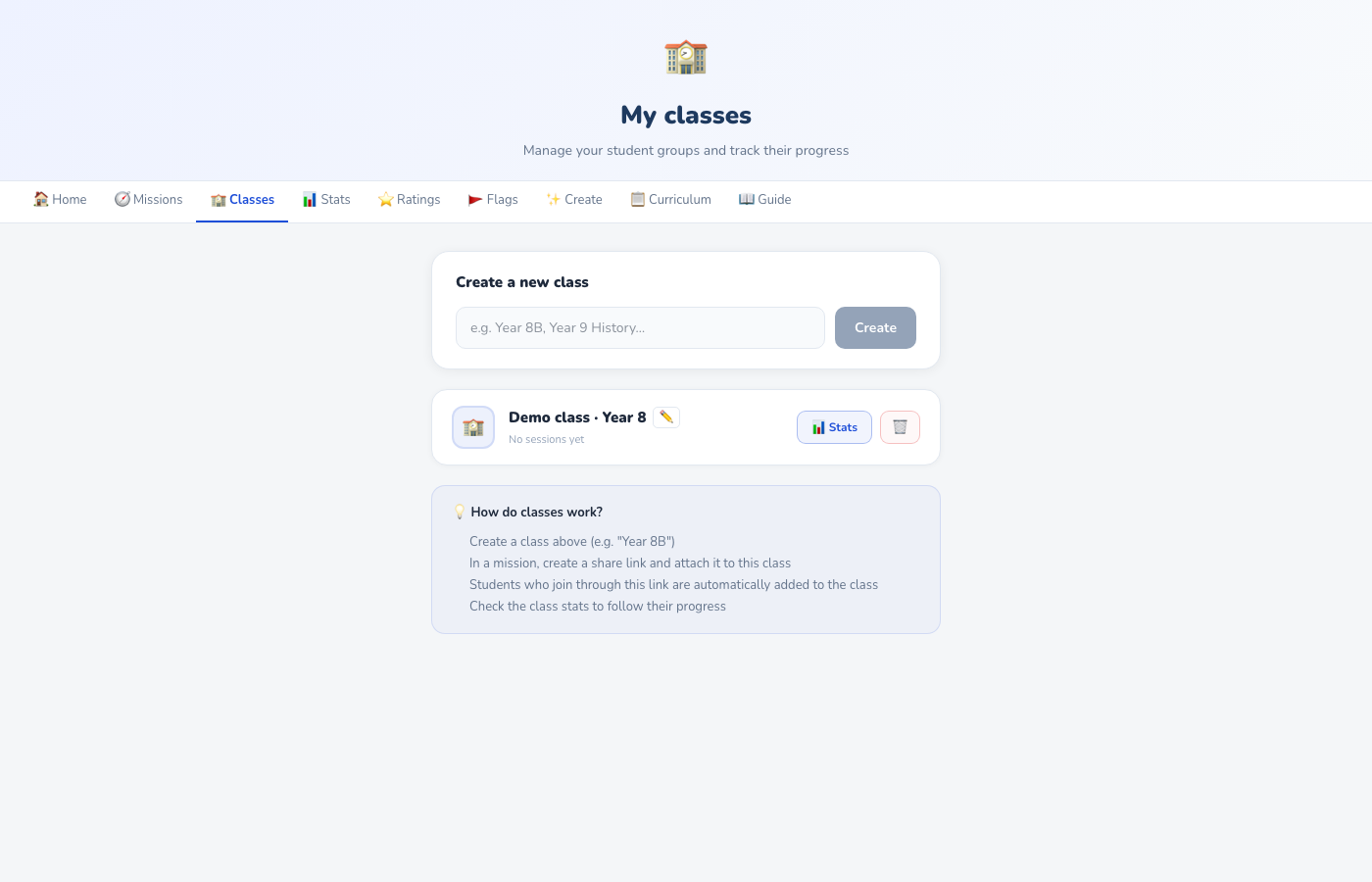
A demo class created in the Classes tab
4

🔗 Share the link with your students

From “🧭 Missions”, open the mission you have just created and click “Share with students”. Choose how long the link is valid and attach it to the class created in step 3.

🔗 Share with students
⏳ Valid for 30 days
🏫 Demo class · Year 8
Link
parlova.org/join/7K2PQ
Password
renard-bleu-42
QR code generated automatically — project it in class or stick it on a sheet.

A link, a password and a QR code are generated. Students who join through this link are automatically added to the class — no account to create on their side, they are in the mission in under 30 seconds.

💡
A “copy student details” button prepares a text ready to paste into an email or your school's learning platform (link + password).
5

📊 Follow the statistics

During the lesson — open the mission dashboard, “Live” tab, to watch your students progress in real time (no need to refresh).

Live— 18 students connected
Emma W.
💬 Talking with Pericles
Noah B.
✍️ Writing the final answer
Aisha K.
🗺️ Exploring the map

After the lesson — the class page (or the “📊 Stats” tab) gives each student's scores, time spent and concepts discovered, with a CSV export.

📊 Demo class · Year 8 — after the lesson
16 / 18
Finished
7.4 / 10
Average score
24 min
Average time
Per-student detail (score, concepts discovered, time spent) + CSV export available on the class page.
6

🗺️ What the game looks like for students

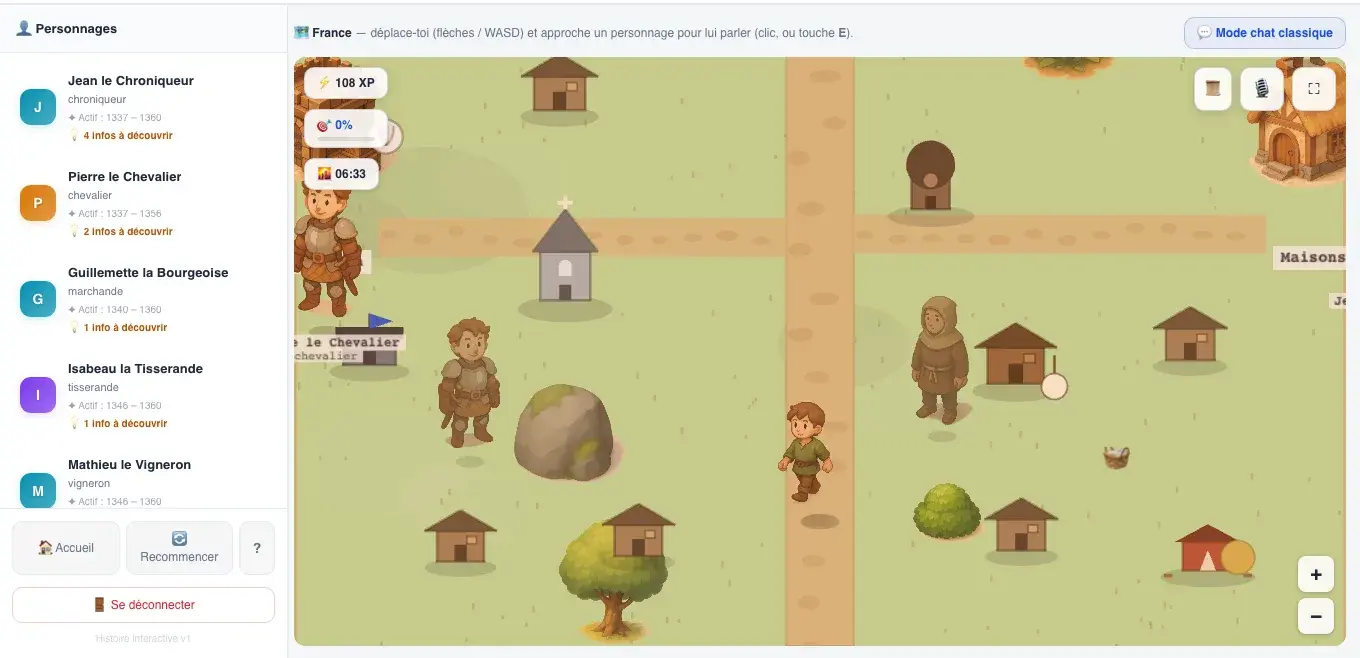
Here is what your students come across, in order.
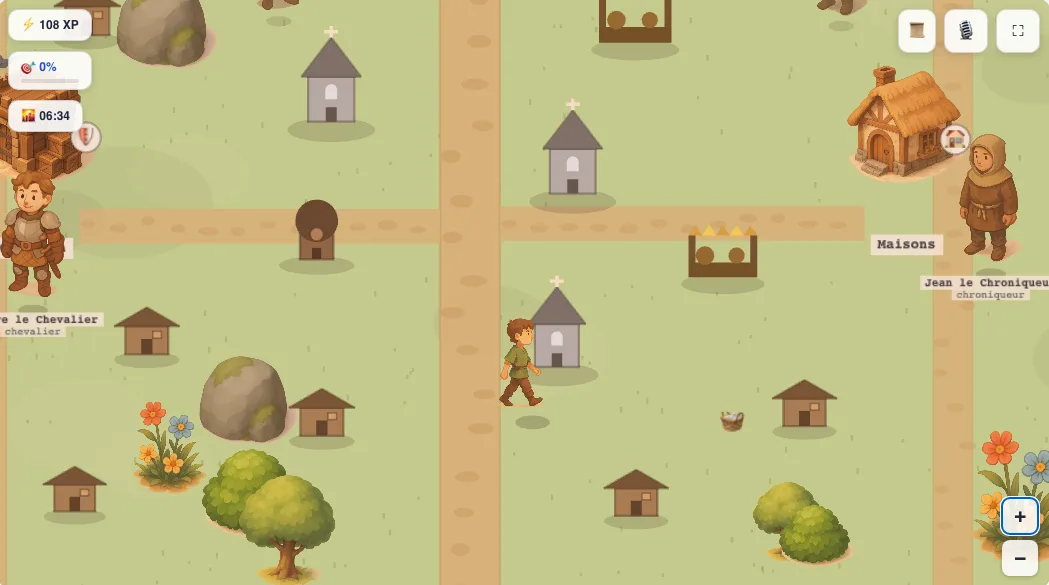
Explorable 2D map, close-up
The explorable 2D map with the characters
1 — The explorable 2D map
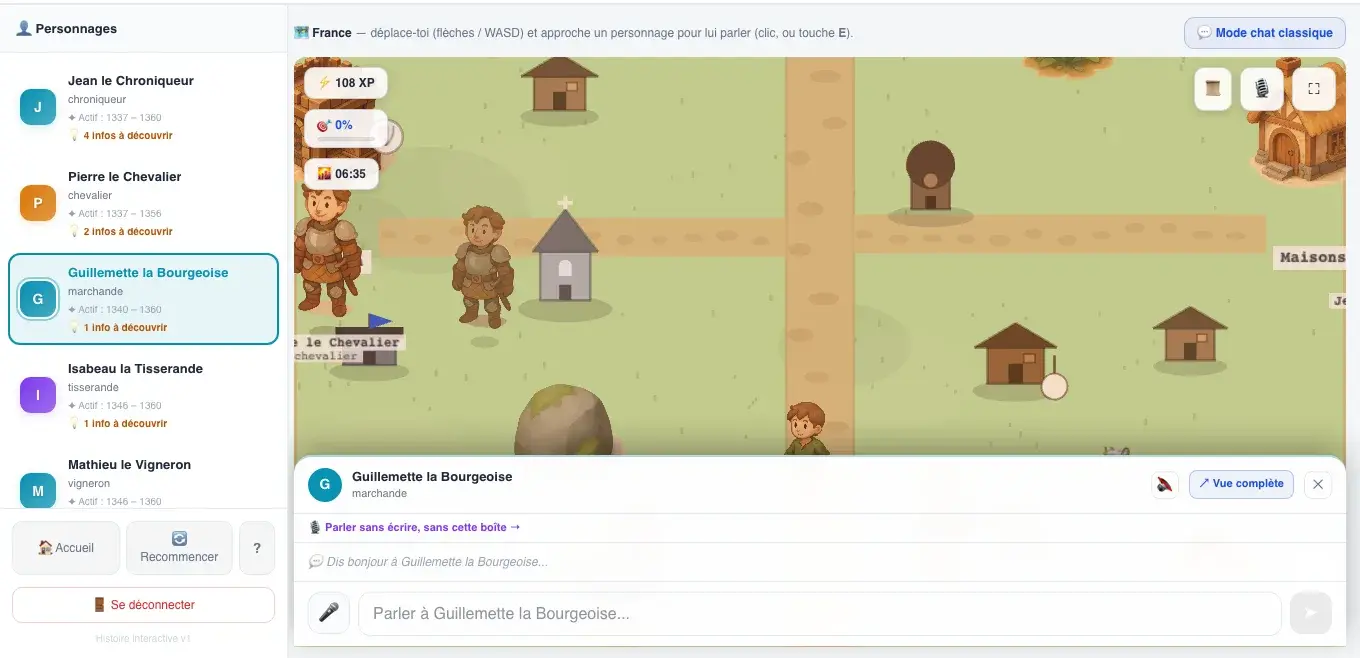
Conversation with a character, clues on the left
2 — Talking with a character
💡
Concepts
Every useful piece of information gathered in conversation joins a list of clues — the raw material for answering the final question.
❓
Learning questions
Targeted questions pop up in the conversation to check understanding as the student explores.
⚡
Events
Plot twists sometimes shake up the situation and relaunch the investigation.
🗓
The timeline
A thread for moving through the mission — its name changes with the domain, see the table below.
✍️
Final question
The student writes a reasoned answer using what they have discovered — the moment the learning sticks.
🎓
Debrief
Score out of 10, model answer, strengths and points to improve, a detailed explanation — assessed by the AI against the teaching brief.
📄
Cited sources
When a character relies on a document you provided, the student can expand “Documents provided for this answer” and see the exact passage quoted, with the page.

🎓 What the AI sends back to the student after their answer

Not just a mark: structured feedback, built from the teaching brief validated in step 2 — here on the same example, “The Crusades”.

🏆 Final score8/10
⚡ +45XP earned

Good grasp of the religious and political stakes of the Crusades; the economic dimension (Mediterranean trade) is still underdeveloped.

💡 Model answer
The Crusades combine religious motives (retaking Jerusalem), political ones (asserting royal and papal power) and economic ones (control of Mediterranean trade routes).
✅ Strengths
• Uses the right chronological landmarks
• Mentions Urban II and the call at Clermont
⚠️ To improve
• Develop the role of Mediterranean trade
📚 Historical explanation
The Crusades took place amid rivalry between Christendom and Islam for control of Jerusalem, but they also answered political logics internal to feudal Europe…
🌍 Consequences
Lasting Latin states in the East, more trade and cultural exchange with the Muslim world, prolonged religious tensions…

📝 The memo sheet, to print or keep online

Generated automatically at the end of the mission, available at any time from the “Memo” button — a condensed revision aid, regardless of the score obtained.

📝 The Crusades — Memo
Summary

Between 1095 and 1291, several military and religious expeditions sought to retake Jerusalem, multiplying contacts — both conflict and trade — between Christendom and Islam.

Timeline
1
1095 — Urban II calls for a crusade at Clermont
2
1099 — The crusaders take Jerusalem
3
1187 — Saladin retakes Jerusalem
4
1226–1270 — Reign of Louis IX, the crusader king
Characters
Urban II — pope
Saladin — sultan
Key concepts
crusadeLatin stateMediterranean trade
Key takeaways
• Religious, political and economic motives intertwined
• Lasting contacts — not only conflict — between the two worlds
The timeline changes name with the domain
🏛️ History / Geography🗓 Timeline
🏺 Mythology📖 Acts
🧠 Psychology📋 Sessions
🔍 Investigation📅 Days
🤔 Philosophy💬 Debate

🏅 Progress you play, not just a mark

XP, levels and badges (bronze/silver/gold) in each domain reward consistency, not just performance. A personal Codex keeps track of the characters met, the concepts learned and the illustrations unlocked across the missions played.

📜
Chronicler
1 history mission
🔬
Seasoned analyst
10 psychology missions
🌟
Oracle
10 mythology missions
💬
Dialectician
3 philosophy missions
👑
Great Detective
10 investigations solved

🎓 The experience adapts to the level

Junior mode (ages 11–14) and Adult mode (ages 15 and up, higher education) share the same mechanics, but not the same intensity.

🧒 Junior
  • Rewards highlighted at every step (full-screen pop-up)
  • 2D map in a colourful, illustrated style
🧑 Adult
  • Badges and levels grouped in a discreet, non-blocking notification
  • A more understated look (desaturated colours)